Latest Post


When you shop for a computer, you'll want to pay attention to bothprocessor speed and memory before you buy. Your computer contains a processor contained on a computer chip. The speed at which your computer runs programs or completes tasks is determined in great measure by your computer's processor speed.

In addition, computers have a certain amount of storage capacity for running programs and storing data. You'll see specifications for RAM and hard drive memory when you go computer shopping.

Processor speed is measured in gigahertz (GHz). The higher this measurement, the faster the processor. It's hard to say the speed you should look for because these chips are constantly getting smaller and contain more and more power. However, when you shop, know that the higher numbers give the best performance and factor that into your decision depending on your needs.

Just like processor speed, the specific numbers for RAM and hard drive memory change frequently as well. As a general guideline, look for higher RAM numbers if you feel you need more storage capacity.

Here are a few other pointers to keep in mind:

  • RAM is the memory needed to simply access and run programs. RAM chips come in different types, including DRAM, SDRAM, and the latest version, DDR2. Look for a minimum of 1 gigabyte (GB) of RAM for everyday computing.

  • RAM chips are rated by access speed, which relates to how quickly a request for data from your system can be completed. You might see RAM speed measured in megahertz (MHz). Today, 800 MHz could be considered good access speed.

  • Your hard drive has a certain capacity for data storage measured in gigabytes (GB). These days you should probably look for a minimum of a 160GB hard drive, but hard drives can come with a range of huge capacities, with the largest being measured in terabytes (TB, measured in thousands of gigabytes).

  • Your computer will require some RAM to run the operatingsystem. Windows 7 requires 1GB of main memory and 16GB of hard drive space.


After you connect your monitor,keyboard, and mouse to your new computer and your computer is plugged into an electrical outlet or strip, you're ready to turn it on and then log on. Simply press the power button on your computer to begin the Windows 7 start-up sequence.

In the resulting Windows 7 Welcome screen, enter your password, if you have one. If you haven't set up the password protection feature for more than one user, you're taken directly to the Windows 7 desktop.

image0.jpg

After you set up more than one user, before you get to the password screen, you have to clickthe icon for the user you want to log on as.

If you've set up multiple users, click the arrow button or click Switch User and choose another user to log on as. Then type your password. Windows 7 verifies your password and displays the Windows 7 desktop. (Note:) The icons on your desktop may vary depending on what programs your computer manufacturer may have installed.

After you're logged in, to change to another user account, first save any open documents, close any open applications, and then choose Start. Then click the arrow next to the button, labeled Shut Down, in the bottom-right corner of the Start menu and choose Log Off. Windows 7 logs off and displays a list of users. To log on again, click a user icon.

To create another user, choose Start@@→Control Panel, and, under the User Accounts and Family Safety heading, click Add or Remove User Accounts. Then click Create a New Account. Follow instructions to enter a name for the account and set a password for it, if you like.


Though you may have used akeyboard of some type or a traditional mouse attached to adesktop computer, a laptop pointingdevice, called a touchpad, may be new to you. Frankly, a laptop touchpad, which is essentially your laptop's built-in mouse, takes a little getting used to.

Laptop mouses come in two types: the touchpad and the pointing stick. The touchpad, by far the most common type, is a flat area, located beneath your keyboard. A pointing stick is a small button located among your computer's keys.

When you move your finger across the touchpad surface or place your finger on the pointing stick and move the stick slightly in any direction, a corresponding mouse pointer moves around your computer screen. With a touchpad, which is what you're likely to have on your laptop, you perform clickingactions to open or select things on screen by using the right and left buttons on the bottom of the touchpad.

The left button on the touchpad is used for left-click actions and the right button for right-click actions. Left-clicking opens or selects items, while right-clicking opens a shortcut menu from which you can choose commands to perform actions.

image0.jpg

Here are the main functions of a touchpad and how to control them:

  • Clicking: When people say "click," they mean "press and release the left mouse button." Clicking has a variety of uses. You can click while in a document to move the insertionpoint, a little line that indicates where your next action will take place.

    For example, you might click in front of a word you already typed and then type another word to appear before it in a letter. Clicking is also used in various windows to select check boxes or radio buttons (also called option buttons) to turn features on or off, or to select objects such as a picture or table in your document. You can also double-click to open objects for editing or to quickly select whole words.

  • Right-clicking: If you click the right touchpad button, Windows displays a shortcut menu that is specific to the item you clicked. For example, if you right-click a picture, the menu that appears gives you options for working with the picture. If you right-click the Windows desktop, the menu that appears lets you choose commands that display a different view or change desktop properties.

  • Clicking and dragging: To click and drag, you press and continue to hold down the left mouse button and then move (drag) the mouse to another location. For example, you can press the left touchpad button (keeping it held down) and drag your finger on a touchpad up, down, right, or left to highlight contents of your document.

    This highlighted text is selected, meaning that any action you perform, such as pressing the Delete key on your keyboard or clicking a button for Bold formatting, is performed on the selected text.

  • Scrolling: Many touchpads and wireless mouse models have a way to scroll through a document or Web site on your screen. Just roll the wheel on a mouse down to move through pages going forward or scroll up to move backward in your document. With a touchpad, there is often an area marked on the right or left where you can run your finger up or down to scroll through a document.

If you're used to a desktop computer mouse and can't get the hang of the built-in mouse on your laptop, consider buying a portable wireless mouse. By plugging a small transmitter into a USB port on your laptop, you can use this more standard mouse to point, click, and drag, just as you do with a desktop computer.


To turn off your computer when you're done using it, you need to initiate a shut down sequence in your operating system instead of simply turning off the power. Choose Start and then click the Shut Down button.

If you prefer to stop your computer running but not turn the power off, click the arrow to the right of the Shut Down button and, in the resulting shortcut menu, choose Hibernate on a laptop (or simply close the lid of your laptop) to shut the computer down. If you want toreboot (turn off and turn back on) your computer, choose Restart.

image0.jpg

If you're going away for a while but don't want to go through the whole booting up sequence complete with Windows 7 music when you return, you don't have to turn off your computer. Just click the Sleep command instead to put your computer into a kind of sleeping state where the screen goes black and the fan shuts down.

When you get back, just click yourmouse button or press Enter or, in some cases (especially on some laptops), press the Power button. Your computer springs to life, and whatever programs and documents you had open are still open.

If your computer freezes up for some reason, you can turn it off in a couple of ways. Press Ctrl+Alt+Delete twice in a row or press the power button on your CPU and hold it until the computer shuts down.

Don't simply turn off your computer at the power source unless you have to because of a computer dysfunction. Windows may not start up properly the next time you turn it on if you don't follow the proper shut down procedure.


The best repair is the one you don't have to make. If you can keep your computer up to date and in tune, you and your PC will live a happier, more productive life. Start by making sure that your computer's hard drive is in tip-top shape by regularly cleaning it up

  1. Choose Start→All Programs→Accessories. SelectSystem Tools and click Disk Cleanup.

    The Disk Cleanup dialog box appears.

    image0.jpgimage1.jpg
  2. In the Files to Delete list, check the boxes next to the names of the files you want to remove and clear the boxes next to any files you want to keep. Click the Clean Up System Files button.

    The list of files you can remove safely expands, and the More Options tab appears.

    image2.jpgimage3.jpg
  3. Click the More Options tab to clean up programs you don't use or to remove SystemRestore files.

    You should remove System Restore files and shadow copies only if you're desperate for hard drive space. These files can help you get your system back to normal if the current installation files become damaged or your configuration gets out of whack.

  4. Click OK to start the cleanup process.

    Windows asks whether you're sure that you want to delete these files.

  5. Click Yes.

    Your hard drive is now cleaned up.

Your computer's monitor displays images on its screen, such as the Microsoft Windows7 desktop or a document in a software program. Because you'll be looking at the monitor every time you use your computer, you need to take care of it to maintain its longevity:

  • Use a surge protector. Never plug your display directly into wall current. Instead, be sure to use a good-quality surge protector. Damage caused by an electrical spike ordinarily isn't covered by manufacturer warranties.

  • Keep the air vents open. Never cover the air vents on the top or sides of a monitor. Doing so may result in a dangerous buildup of heat that can damage components or shorten their lives. Periodically, use a new paintbrush or the brush attachment of a vacuum cleaner to remove accumulated dust on the monitor's ventilation holes.

  • Leave your monitor on. The most dangerous moment in an electronic component's life is when power is first applied, and the component goes from cold and uncharged to warm and full of electricity. Avoid turning your monitor on and off more than necessary.

  • Check the connections. Make sure that the cable between the monitor and the video card is firmly attached at each end and not crimped or pinched. If you need to make adjustments and your monitor has a removable cable, unplug it and then replug it into the receptacle on the monitor. This step could reset a loose connection and remove corrosion on any of the connectors.

    image0.jpg

    If that doesn't work, unplug and reconnect the monitor cable at the computer end. You may have to use a screwdriver or thumbscrew to unlock the connection before you can unplug it. Use these locking screws when you replug the cable.

  • Klutzproof your monitor. Be sure that the monitor is safely installed on a sturdy desk, with its cable properly out of trippingrange of passersby. And, of course, don't place cups of coffee or soda anywhere in the vicinity.


Adding memory (up to your machine's specific limit) is generally the most cost-efficient way to increase its speed. Fortunately, installing memory is one of the most basic operations you can perform inside the case of your computer. You just have to pay close attention to details and take care not to damage your computer while you try to make it better.

Nearly all memory vendors provide instructions for installing their modules. Many also answer questions over the phone or through a chat feature on their Web sites.

1

    Find the right memory module.

Check the specifications for your computer to find the maximum amount of RAM it's capable of managing. Most modern computers sold to consumers can handle no more than 4GB; paying for and installing more than the maximum is a waste of money and may even cause problems in some machines.

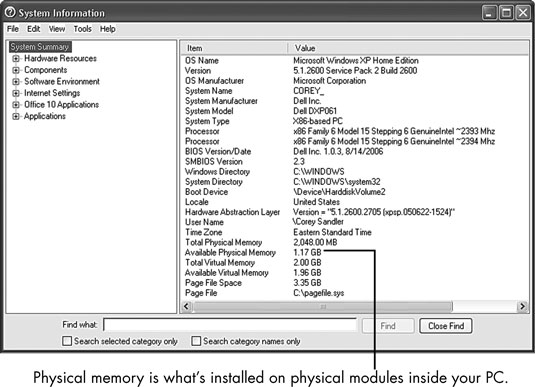
To find out what kind of memory modules you already have installed in your PC (and need to purchase), choose Start→All Programs→Accessories→System Tools→System Information. The System Information window opens, displaying a report on memory.

2

Prepare your workspace, assemble your tools, ground yourself properly, turn off the computer, and unplug the power cord and cables.

Place the computer on a sturdy, well-lighted surface, and open its case.

3

Look for a set of long slots that hold upright DIMM memory modules.

Most motherboards have two or four such slots, usually black, with a set of plastic lockdown/ejector clips at each end.

If you've already run a scanning program, you should know how many DIMM slots to look for and how many of them are already filled. In general, you should have two or four identical modules. If you're installing larger or faster modules as a pair, they should go in the first two slots. In most designs, the slots closest to the microprocessor are considered to be slots 0 and 1 (and are marked that way on the motherboard in tiny letters).

4

If you need to remove an old module to install a new one, press evenly on both of the lockdown/ejector clips to release the unit; then lift the module straight up and out of the slot.

Place the removed module on a nonconductive surface such as a cardboard box or plastic bag.

5

Take the new module out of its antistatic bag, holding it by the edges.

Avoid touching the metallic connectors on each side of the bottom of the module to keep oils from your fingers from interfering with the module's contact with the motherboard.

6

Follow the installation instructions provided by the memory seller.

In most situations, you'll be asked to put the largest-capacity modules in the first slots and the smaller ones in the higher-numbered slots.

7

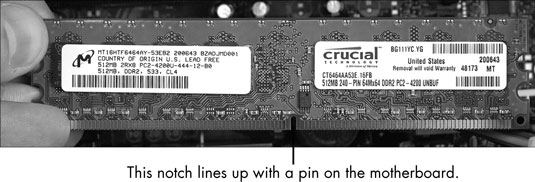
Locate the notch in the row of pins at the bottom of the module.

It needs to line up with a matching pin or key in the DIMM slot on your motherboard. The location of the notch depends on the type of module your computer uses. If the notch and pin don't line up, turn the module 180 degrees and try that way.

8

With the notch and pin aligned, press evenly on both ends of the module until it's fully inserted into the slot on the motherboard and the lockdown/ejector clips clickinto place.

Don't attempt to force the module into the slot if it seems to be a complete mismatch. Contact the provider of the memory module to make sure that you received the proper type for your PC.

9

Examine the inside of the case to make sure that all the memory modules are locked down properly and that you didn't leave anything inside.

10

Put the cover back on, secure it properly, return the machine to its usual location, reattach the cables and power cord, and turn on the juice.

11

Check the amount of installed memory.

See Step 1 if you're not sure how to do so.


If you've never owned a computer and now have one for the first time, figuring out what your computer can and can't do may be a somewhat daunting experience. The following list walks you through some things you can use your computer to do:

  • Keep in touch with friends and family. The Internet has made it possible to communicate with other people in a variety of ways, including

    • E-mail

    • Webcams (tiny, inexpensive video cameras that capture and send your image to another computer)

    • VoIP (Voice over InternetPhone), which uses your computer and Internet connection to place phone calls.

    You can also chat with others by typing messages and sending them through your computer using a technology called instant messaging. These messages are exchanged in real time so that you and your grandchild, for example, can see and reply to text immediately.

  • Research any topic from the comfort of your home. Online, you can find many reputable Web sites that help you get information on anything from expert medical advice to the best travel deals. You can read news from around the corner or around the world. You can visit government Web sites to find out information about your taxes, Social Security, and more, or even go to entertainment sites to look up your local television listings.

  • Create greeting cards, letters, or home inventories. Whether you're organizing your holiday card list or figuring out a monthly budget, computer programs can help. For example, have a look at a graph that Microsoft Excel created from data in a spreadsheet.

    image0.jpg
  • Pursue hobbies, such as genealogy or sports. You can research your favorite teams online or connect with people who have the same interests. The online world is full of special interest chat groups where you can discuss your interests with others.

    image1.jpg
  • Play interactive games with others over the Internet. You can play everything from shuffleboard to poker to action games in virtual worlds.

  • Share and create photos, drawings, and videos. If you have a digital camera, you can transfer photos to your computer (called uploading) or copy photos off the Internet and share them in e-mails or use them to create your own greeting cards.

    If you're artistically inclined, you can create digital drawings. Many popular Web sites make sharing digital movies easy, too. If you have a digital video camera and editing software, you can use editing tools to make a movie and share it with others.

  • Shop online and compare products easily, day or night.You can shop for anything from a garden shed to travel deals or a new camera. Using handy online features, you can easily compare prices from several stores or read customer product reviews.

  • Handle your financial life. You can do your banking or investing online and get up-to-the-minute data about your bank account, credit card balances, and investments.


You may have heard the wordshardware and software before and wondered what the difference was. The hardware is all the tangible computer equipment, such as thekeyboard and mouse. The software is what makes the hardware work or lets you get things done, such as writing documents with Microsoft Word or playing a Solitaire game.

Think of computer hardware as being like your television set and the shows that you watch as being like the software.

Hardware you'll find on your computer

The hardware on your computer consists of

  • A central processing unit(CPU), which is the very small, very high-tech semiconductor chip that acts as the brains of your computer. The CPU is stored in a computer tower along with the other nuts and bolts of your computer.

  • A monitor, which displays images on its screen, such as the Microsoft Windows desktop or a document in a software program.

  • A keyboard, which is similar to a typewriter keyboard. In addition to typing words, you can use a keyboard to give the computer commands.

  • A mouse, which you also use to give your computer commands. You move the mouse around your desk with your hand, which moves a pointer around on-screen. Using this pointer, you can click items like buttons that cause an action or click the screen and drag the mouse toselect text or an object to perform an action on it (such as deleting it or making the text bold).

  • Peripherals, such as a printer, speakers, webcams, and microphones. These items may or may not come with your computer when you buy it, but your computer does come with slots (called ports) where you plug in various peripherals.

Software that runs stuff on your computer

Software (also known as programs or applications) is installed on your computer hard drive, which resides in the computer casing (either in your laptop or, for a desktopcomputer, in the computer tower).

Here are a few basics about software:

  • You use software to get your work done, run entertainment programs, and browse the Internet. For example, Quicken is a financial management program you can use to balance your checkbook or keep track of your home inventory for insurance purposes.

  • Some programs come preinstalled on your computer; you can buy and install other programs as you need them. For example, there is always anoperating system on a computer, because it runs all the other programs.

    Some programs are included with your operating system, such as Solitaire, an electronic version of the old favorite card game, which comes with Windows 10. Skype, a program that enables you to make online phone calls using your computer, is a popular program that you can find on the Internet and install on your computer yourself.

  • You can uninstall programs you no longer need. Uninstalling unwanted programs helps to free up some space on your computer, which helps it perform better.

  • Some software programs called utilities exist to keep your computer in shape. An antivirusprogram is an example of a utility used to spot and erase computer viruses from your system. Your operating system (such as, Windows 10 Home Premium, which also includes some utilities, like the Windows Defender program. Windows Defender protects your computer from unwanted intrusion by malicious programs called spyware.

You can find several styles of computers on the market, and you may be wondering how you'll ever choose which one to buy. 

Some computers, such as laptops, are small and portable. Other computers use different operatingsystems, such as Windows and Macintosh, to make everything run. Computers may excel at certainfunctions, such as working with graphics or playing games.

Consider the following features when choosing the type of computer you should buy:

Which computer operating system do you prefer?

Windows is probably the most common computer operating system. However, Macintosh computers from Apple are also popular. Macintosh computers use Apple-specific software. However, many software applications written for Windows are also available for the Macintosh, and you can also set up your Mac to run the Windows operating system, which gives you the best of both worlds.

Some computers run on a freely available operating system called Linux, which has similar functionality to Windows.

Do you want a laptop or PC?

Two types of computers you can buy are a laptop and a desktop. Here's the difference:

  • A laptop is portable, weighing anywhere from two to eight pounds (the lowest weight ones are called netbooks). Themonitor, keyboard, and mouseare built into the laptop. (Note that if the monitor is damaged, you have to pay quite a bit to have it repaired or hook it up to an external monitor.) Choose a laptop (sometimes called a notebook computer) if you want to use your computer mainly away from home, or you have little space in your home for a larger computer.

    image0.jpg
  • Desktop models typically have a large tower that contains the computer's central processing unit (called a CPU). The keyboard, mouse, and monitor are separate. Desktopcomputers take up more space than laptops and are not portable, but they're usually less expensive.

    image1.jpg

How about pictures and sound on your computer?

If you work with a lot of visual elements (for example, photographs, home movies, or computer games), consider a computer that has a better graphics card. Games often involve sound, so a high-end sound card may also be useful.

Computers with more sophisticated sound and image capabilities are often referred to as gaming or multimedia models and they typically require a larger hard disk to handle these functions. Because the capabilities of these cards change all the time, ask the person you're buying the computer from whether the system can handle sophisticated sound and graphics.

Google Glass

Subscribers to Google's streaming music service are receiving invitations to purchase the high-tech specs for $1500 as part of the Glass Explorer program. Google began sending e-mails to All Access subscribers this morning, according to AndroidCentral . Google Play Music All Access, an on-demand streaming music service similar to Spotify and Rdio, costs $10 per month.

It's unclear how many All Access subscribers will be able to purchase Google Glass. The e-mail is titled "Your Chance to Buy Google Glass," and it prompts users to sign up for an invitation. But at least one PCWorld editor is an early subscriber and he has not received one.

Google has been steadily expanding the Glass Explorer program, in which potential owners must apply to purchase the $1500 prototype. The first units went out in April, but only for pickup in New York, Los Angeles and San Francisco. Google has occasionally allowed Glass owners toinvite a few friends to the Explorer program, and Google is now accepting applications from all U.S. residents.

"We're expanding The Explorer Program little by little, and experimenting with different ways of bringing new Explorers into the program," Google's sign-up page says.

Google hasn't said when it will end the Explorer program and launch a finished version of Google Glass. Perhaps we'll see a Google Now smartwatch come to fruition first.

Skype logo

"You may have noticed our social media properties were targeted today," Skype said in a Twitter message late Wednesday. "No user info was compromised. We're sorry for the inconvenience."

Skype's Twitter account, blog and Facebook page appeared to have been attacked by the SEA, a group that supports the Syrian government, according to reports. The Skype blog was still inaccessible late Wednesday and redirected users to the Skype homepage.

skype syrian army hack

The SEA reproduced in a Twitter message a copy of what appeared to be its message using the Skype account on Twitter. The message read: "Don't use Microsoft emails(hotmail,outlook),They are monitoring your accounts and selling the data to the governments.More details soon #SEA." It did not figure by late Wednesday on Skype's Twitter feed.

SEA later posted on Twitter contact information purportedly of Microsoft CEO Steve Ballmer, stating: "You can thank Microsoft for monitoring your accounts/emails using this details."

The attack on Skype's social media accounts appears to be linked to disclosures through newspapers by former U.S. National Security Agency contractor Edward Snowden that Internet companies allegedly provide the agency real-time access to content on their servers for surveillance purposes.

The SEA has targeted previously many high-profile websites and Twitter accounts. In August, an attack purportedly by SEA on Melbourne IT, an Australian domain registrar, affectedthe websites of The New York Times, Twitter and other top companies.

asus vivotab manual leak
Rumors about an 8-inch Windows tablet from Asus are looking more solid by the day. Following leaked specs in mid-December and an FCC filing earlier in the month, a user manual for the Asus VivoTab Note 8 recently turned up on Asus.com.

Asus has yet to announce the product and it's anybody's guess when the manual was published on Asus.com—it was first discovered by Laptoping on Thursday. Nevertheless, with theConsumer Electronics Show in Las Vegas just days away, you have to wonder if an announcement from Asus is imminent.

The manual on Asus' site doesn't mention the specs of the device, but previous leaks from German language site Mobile Geeks (Google Translate link) reported the device would be powered by a 1.33GHz Intel Atom "Bay Trail" Z3740, an 8-inch display with 1280-by-800 resolution, 2GB of RAM, 32GB or 64GB of internal storage, a microSD slot supporting up to 32GB, a 1.2 Megapixel front-facing camera, a 5 megapixel rear-facing camera, Windows 8.1, and a free version of Microsoft Office 2013 Home and Student.

asus vivotab manual leak power

Whew! Good thing this was in the manual.

Those specs show little difference from what is currently available on the Dell Venue 8 Pro and Lenovo's Miix 2. Both of those slates offer the same processor, RAM, screen resolution, camera, and software packages as the rumored specs on the Asus VivoTab Note 8. Other 8-inch Windows tablets, including the Acer Iconia W4 and theToshiba Satellite Encore, aren't terribly different either.

With yet another similarly spec'd 8-inch tablet on the horizon, it appearsearly mini Windows slates are suffering from a case of WinPho-itis. Just like those early Windows Phone 7 devices, the current crop of pint-sized Windows tablets have little to differentiate themselves other than the name of the manufacturer emblazoned on the device.

The pen is mightier

That said, Asus may have found one way to stand out from the crowd. When Mobile Geeks leaked the device's specs in December, the German language site said the VivoTab Note 8 would include Wacom digitizer support and come with a stylus.

The manual confirms a stylus will come with the device, but doesn't mention Wacom. Other Windows 8.1 8-inch devices support digital pens, but Wacom is considered the gold standard for stylus inputs.

There's no word on pricing or availability, but hopefully Asus will have more to say about the VivoTab Note 8 at CES.

Despite being late to the game, Asus was one of the first computer makers rumored to be working on a smaller Windows slate. Last May, the Wall Street Journal reported that Asus planned to release a small Windows tablet with a sub-$300 price tag.

S Naga Malleswara Reddy

S NAGA MALLESWARA REDDY

Contact Form

Name

Email *

Message *

Powered by Blogger.
Javascript DisablePlease Enable Javascript To See All Widget